Skins
Skins are pre-made theme presets created by the mychar.gg community. They bundle colors, backgrounds, and styling into a single preset you can apply with one click.
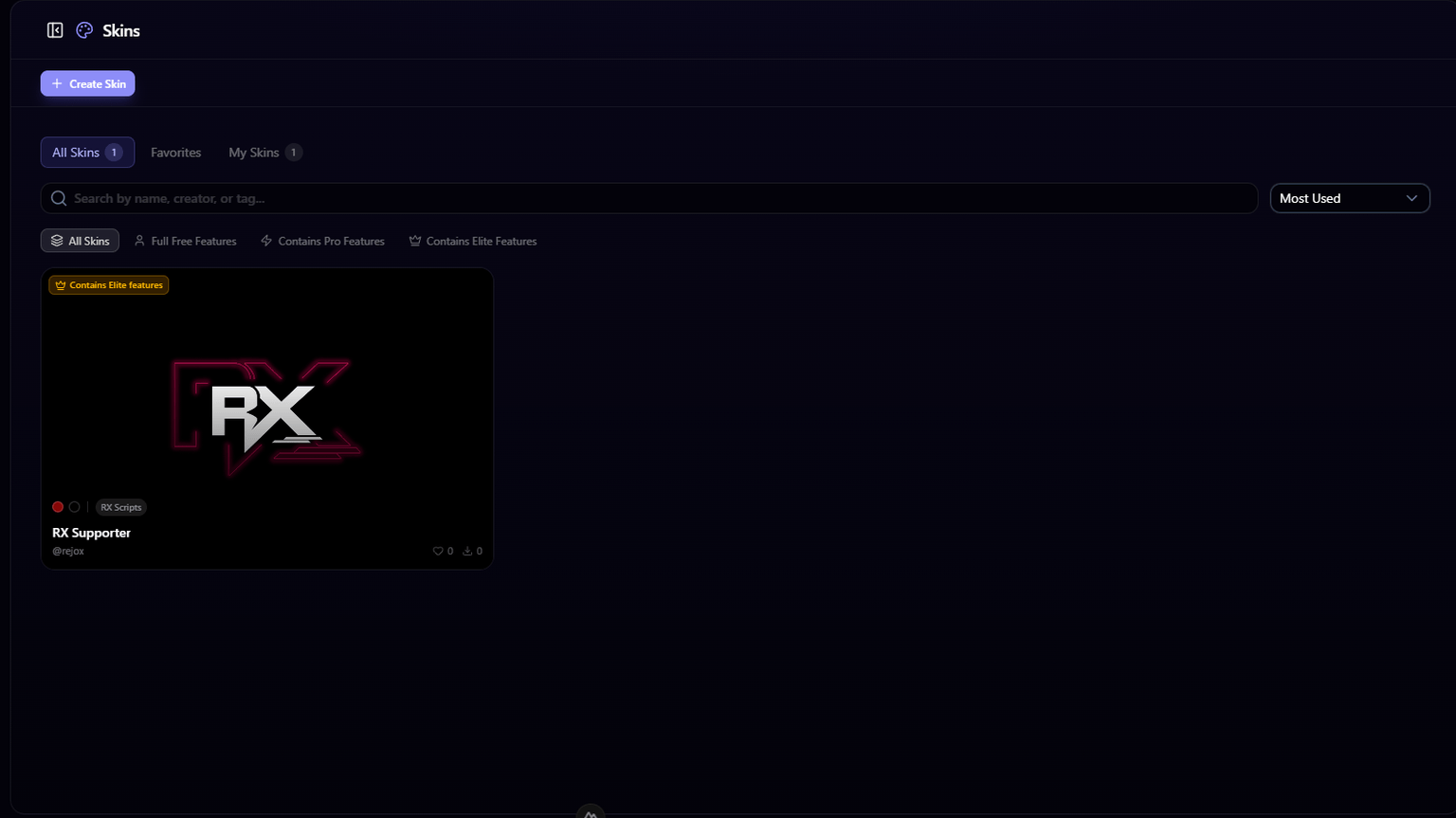
Browsing Skins
Go to Skins from your dashboard sidebar. You'll see a gallery of community-created skins.
Search & Filter
- Search: Find skins by name or description
- Filter by plan: See which skins work with your current plan (some skins use features that require Pro or Elite)
- Sort: Most used, latest, or most favorited
Tabs
- All Skins: Browse the entire community library
- Favorites: Your saved favorite skins for quick access
- My Skins: Skins you've created
Applying a Skin
Click on a skin to preview it, then click Use Skin to apply it to your page. Your current customization will be replaced with the skin's settings.
Favoriting Skins
Click the heart icon on any skin to add it to your favorites. Access your favorites quickly from the Favorites tab.
Creating a Skin
Save your current page styling as a skin that others can use:
- Set up your page with the colors, background, and styling you want
- Go to the Skins page
- Click Create Skin
- Give your skin a name and description
- Choose visibility: Public (visible to everyone) or Private (only you can see it)
- Save
Your skin captures your current color scheme and background settings as a reusable preset.
Deleting Skins
You can delete skins that you've created. Go to the My Skins tab and click the delete button on the skin you want to remove.
Custom Cursors
Upload custom cursors for your page on Pro or Elite: PNG, SVG, GIF, or ICO files up to 5 MB, with a library of 3 to 10 cursors by plan.
Integrations
Overview of platform integrations: Discord on every plan, YouTube and Twitch on Pro and Elite, each connected through the platform's OAuth flow.
Claim your username
Free forever. Your page is live in minutes.
- Free forever
- No credit card needed