YouTube
Connect your YouTube channel to display your videos and channel info on your mychar.gg profile.
How to Connect
- Go to Settings from your dashboard sidebar
- Find the YouTube Connection section
- Click Connect YouTube
- You'll be redirected to Google to authorize the connection
- After authorizing, you'll be redirected back to mychar.gg
What Permissions Are Requested
- Channel info: Your channel name, description, banner, and subscriber count
- Videos: Your public video list (titles, thumbnails, and upload dates)
What Data Is Stored
- Your YouTube channel ID
Features
To enable or disable the YouTube section:
- Open the builder
- Toggle the YouTube section visibility on or off
Settings
Configure how your YouTube content is displayed in the builder.
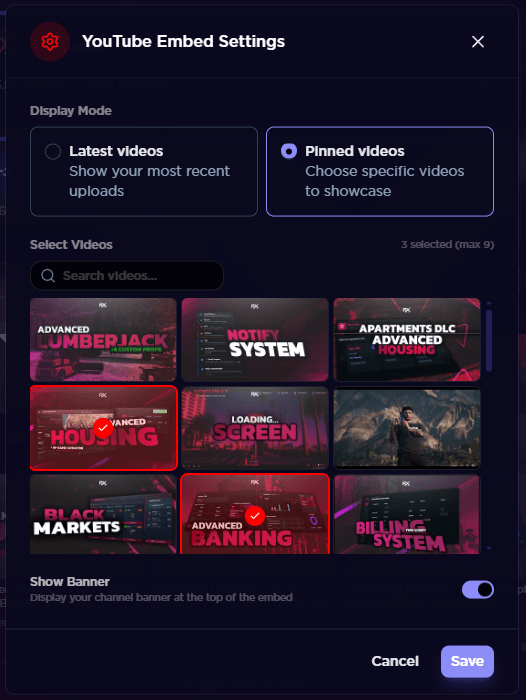
Display Mode - Choose how videos are shown on your profile:
- Latest Videos - Automatically shows your most recent public uploads
- Pinned Videos - Hand-pick specific videos to showcase
Video Count - Set how many videos are displayed on your profile. The default is 3.
Pinned Videos - When using Pinned Videos mode, you can select specific videos by their video ID. To find a video ID, look at the URL of any YouTube video: https://www.youtube.com/watch?v=VIDEO_ID_HERE
Channel Banner - Toggle whether your YouTube channel banner is displayed above your videos.
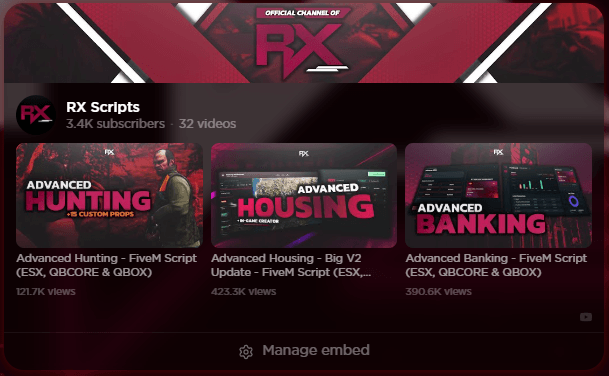
Preview
Disconnecting YouTube
- Go to Settings from your dashboard sidebar
- Find the YouTube Connection section
- Click Disconnect
Disconnecting will remove your YouTube data from mychar.gg and hide the YouTube section from your profile.
Claim your username
Free forever. Your page is live in minutes.
- Free forever
- No credit card needed