Avatar
Your avatar is the profile picture displayed on your character page. You can upload multiple avatars and switch between them.
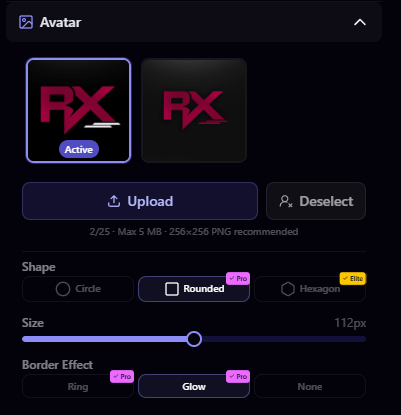
Uploading an Avatar
- Go to Customize from your dashboard
- Open the Avatar section in the builder sidebar
- Click Upload or drag and drop your image
- Your new avatar is saved to your library and set as active
File Requirements
| Property | Value |
|---|---|
| Max file size | 5 MB |
| Accepted formats | JPEG, PNG, WebP, GIF |
| Recommended size | 256 × 256 pixels |
Avatar Library
You can store multiple avatars and switch between them at any time. Click on any avatar in your library to set it as your active avatar.
Storage limits by plan:
| Plan | Max Avatars |
|---|---|
| Free | 2 |
| Pro | 10 |
| Elite | 25 |
To remove an avatar from your library, click the delete button on the avatar you want to remove. Your active avatar cannot be deleted, so switch to a different one first.
Avatar Styling
In the builder, you can customize how your avatar looks on your page:
- Shape: Circle, rounded square, or square
- Size: Adjust the avatar size on your page
- Border / Ring: Add a border or ring effect around your avatar
Custom Domain
Point your own domain at your page with the monthly custom domain add-on: add one A or CNAME record, verify ownership, and get automatic SSL.
Display Name, Bio & Pronouns
Set your display name, bio, pronouns, and location in the builder. Display name and rich HTML bios need Pro, pronouns are free on every plan.
Claim your username
Free forever. Your page is live in minutes.
- Free forever
- No credit card needed